> ## Documentation Index
> Fetch the complete documentation index at: https://docs.creem.io/llms.txt
> Use this file to discover all available pages before exploring further.
# How to Request a Re-Review
> Your account review came back with changes requested. Here is exactly what to do next.
If your account review comes back with **Changes Requested**, don't start from scratch. Fix the flagged issues, then request a re-review from your dashboard.
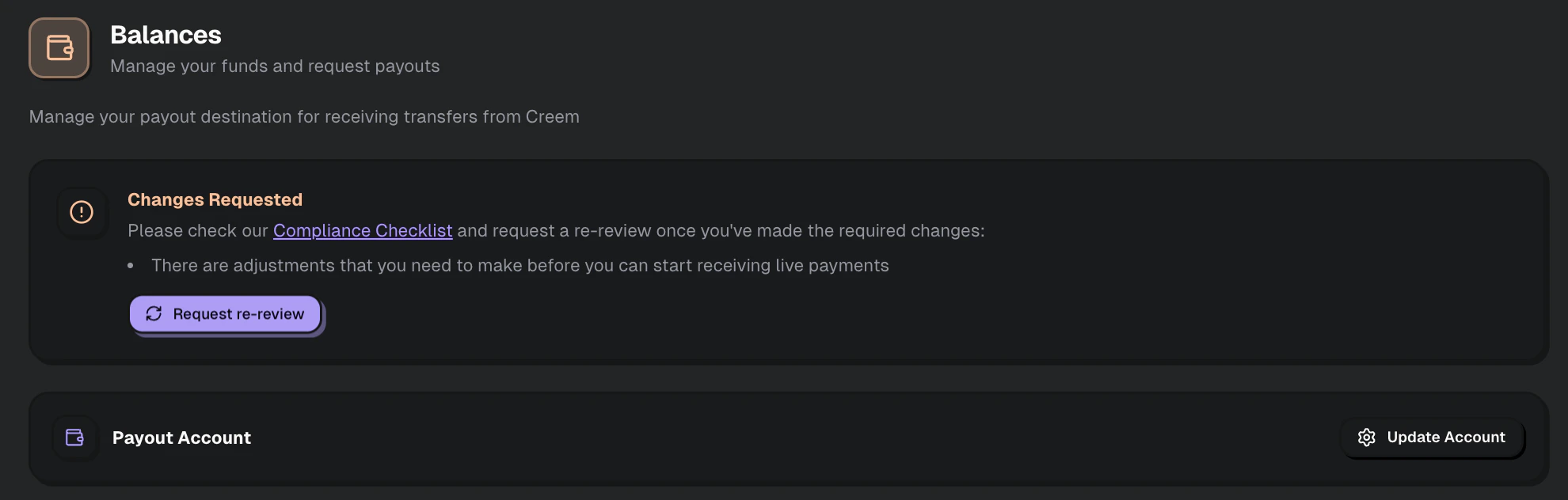
Re-reviews are requested from **Balance → Payout Account** using the **Request re-review** button. If you need help or the feedback is unclear, contact [Creem support](https://creem.io/contact) and include your Store ID.
## Step 1 - Review the feedback
Read the review feedback carefully and make a checklist of every issue you need to fix before requesting another review.
The most common requests, and how to fix them:
| Re-review reason | What to do |
| - | - |
| **Missing or inaccessible legal pages** | Add a Privacy Policy and Terms of Service to your website. Both must load without authentication. |
| **Support email mismatch** | Update your email in **Settings → Business Details** to match what is shown on your website. |
| **Moderation API not integrated** | See the [full integration guide](/features/moderation). Your integration must be running in production, not just sandbox. |
| **Product not live** | Your product must be accessible and functional - not a placeholder or "coming soon" page. |
| **Missing Acceptable Use Policy (AI products)** | Add an AUP to your website that explicitly prohibits NSFW and harmful content generation. |
| **Website inaccessible during review** | Remove any password protection, maintenance mode, or bot wall that blocks the review team. |
| **NSFW or "unfiltered" marketing language** | Remove terms like "uncensored," "no filter," "NSFW," or "18+" from your website, marketing pages, and product UI. |
For AI image and video generation products, the most common failure is that the Moderation API is integrated in sandbox mode only, not in production. See [Verify your integration is live](/features/moderation#verify-your-integration-is-live).
## Step 2 - Find your Store ID
You will need your Store ID whenever you contact support about a review.
Go to **Settings** in your dashboard. Your Store ID starts with `sto_` and is displayed at the top of the page.
Save your Store ID somewhere handy. Leading with it makes support much faster.
## Step 3 - Request the re-review
Once you've made the required changes:
1. Go to **Balance → Payout Account**
2. Review the **Changes Requested** card
3. Click **Request re-review**
 ## What happens next
Re-reviews are typically completed within **1-2 working days**. During peak periods, it may take up to **3 working days**.
During the re-review, the team will:
* Verify the changes you made are live on your website
* For AI products: check that your Moderation API integration is active in production
* Confirm no new issues were introduced
If more changes are still needed, you'll get another request with specific feedback.
## Common questions
Usually this means one or more changes were incomplete, not visible to the review team, or new issues were introduced. Double-check the exact feedback and make sure every fix is live before requesting another review.
This is usually caused by maintenance mode, password protection, Cloudflare bot protection, or a regional access block during the review window. Remove those restrictions before requesting a re-review.
Please finalise the requested adjustments before asking for a re-review. But you can carry on testing your CREEM integration while you wait for the review — you just can't take live payments until the account is approved.
The specific feedback is in the email we sent and in [your dashboard](https://www.creem.io/dashboard/balances/accounts). If it isn't clear, work through all of the items in Step 1 — most accounts that come back have hit more than one, and fixing them all before you resubmit is faster than resubmitting twice.
If your status is **Rejected** rather than changes requested, this guide doesn't apply — see [If your account was rejected](/merchant-of-record/account-reviews/rejected-accounts).
## Related
Full checklist and review requirements.
Extra requirements for AI image and video products.
This documentation is built and hosted on [Mintlify](https://mintlify.com), a developer documentation platform.
## What happens next
Re-reviews are typically completed within **1-2 working days**. During peak periods, it may take up to **3 working days**.
During the re-review, the team will:
* Verify the changes you made are live on your website
* For AI products: check that your Moderation API integration is active in production
* Confirm no new issues were introduced
If more changes are still needed, you'll get another request with specific feedback.
## Common questions
Usually this means one or more changes were incomplete, not visible to the review team, or new issues were introduced. Double-check the exact feedback and make sure every fix is live before requesting another review.
This is usually caused by maintenance mode, password protection, Cloudflare bot protection, or a regional access block during the review window. Remove those restrictions before requesting a re-review.
Please finalise the requested adjustments before asking for a re-review. But you can carry on testing your CREEM integration while you wait for the review — you just can't take live payments until the account is approved.
The specific feedback is in the email we sent and in [your dashboard](https://www.creem.io/dashboard/balances/accounts). If it isn't clear, work through all of the items in Step 1 — most accounts that come back have hit more than one, and fixing them all before you resubmit is faster than resubmitting twice.
If your status is **Rejected** rather than changes requested, this guide doesn't apply — see [If your account was rejected](/merchant-of-record/account-reviews/rejected-accounts).
## Related
Full checklist and review requirements.
Extra requirements for AI image and video products.
This documentation is built and hosted on [Mintlify](https://mintlify.com), a developer documentation platform.